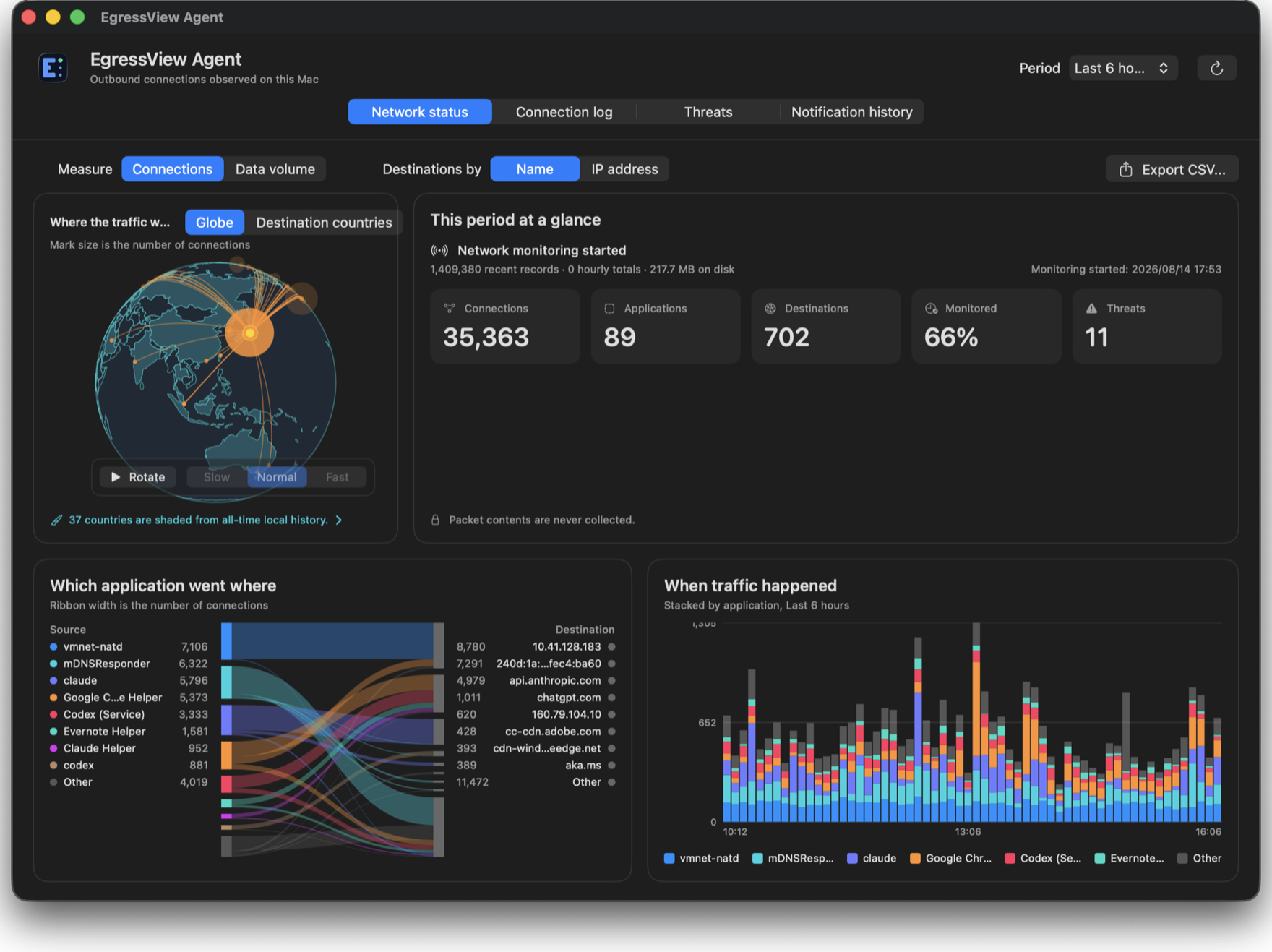
What you get
Which app went where
Country, domain and IP address — and an unfamiliar destination arrives with the program that reached for it, not just an address.
It says what it does not know
Gaps in monitoring are shown as gaps. An empty threat list is never presented as "nothing found" unless something was actually checked.
Threat matching stays on your device
Threat lists are downloaded and matched against observed destinations on your device. If you enable optional location lookups, destination IP addresses are sent to ipwho.is. If you choose cloud AI and submit a question, the previewed data goes to that provider. See the conditions and destinations for macOS and Windows.
Works on its own
An EgressView Hub adds fleet-wide history and threat feeds, but the agent is useful without one.
Installing
macOS
Apple silicon · macOS 13 or later
- Open the .pkg and follow the installer. It places the agent in Applications and starts it.
- Choose Network monitoring from the menu bar icon. macOS asks you to approve a System Extension — once.
- Updates are offered by the agent itself and install the same way. Approving the System Extension again is not required.
Windows
x64 / ARM64 · Windows 10 or later · no .NET runtime to install first
- Run the .msi. Windows asks for administrator approval once: monitoring runs as a Windows service.
- The service does the recording and the window is a separate application. Closing the window does not stop the recording.
- For now, new versions are downloaded from this page and run by hand. The agent tells you when one exists; it does not install it for you.
Optional: enrolling with a Hub
The same on both
- If you run an EgressView Hub, you can enrol this agent with it. The agent works on its own, so you do not need one.
- Observation delivery to a Hub does not start until you enrol and enable it. The agent shows the destination and fields first. Update checks and any external services you choose to enable are separate.
How to verify this app
# the checksum published in the update manifest
curl -s https://dl.egressview.com/macos/manifest.json

# the file you actually downloaded — the two must match
shasum -a 256 ~/Downloads/egressview-agent-VERSION.pkg

# and what macOS itself thinks of it
spctl --assess --type install --verbose=4 ~/Downloads/egressview-agent-VERSION.pkg
# the checksum published in the update manifest
curl.exe -s https://dl.egressview.com/windows/manifest.json

# the file you actually downloaded — the two must match
Get-FileHash -Algorithm SHA256 $HOME\Downloads\EgressView-Agent-Windows-VERSION-x64.msi